Extract UI Items

Screenshot of a cat with part of an octopus body.
Octokitty UI Item

Octokitty UI Item Current Page

UI Item - Summary

I think that the use of the octokitty image is unique and helps bring the website to life. Having the image appear to be outside of the box provides a layer of depth and character in my opinion. It’s cute which can make people smile and also draws attention to the message that is next to the image. Since it is a strange combination of animals, it is also memorable, which is good for a logo/mascot for the website/company!

UI Item - Techniques

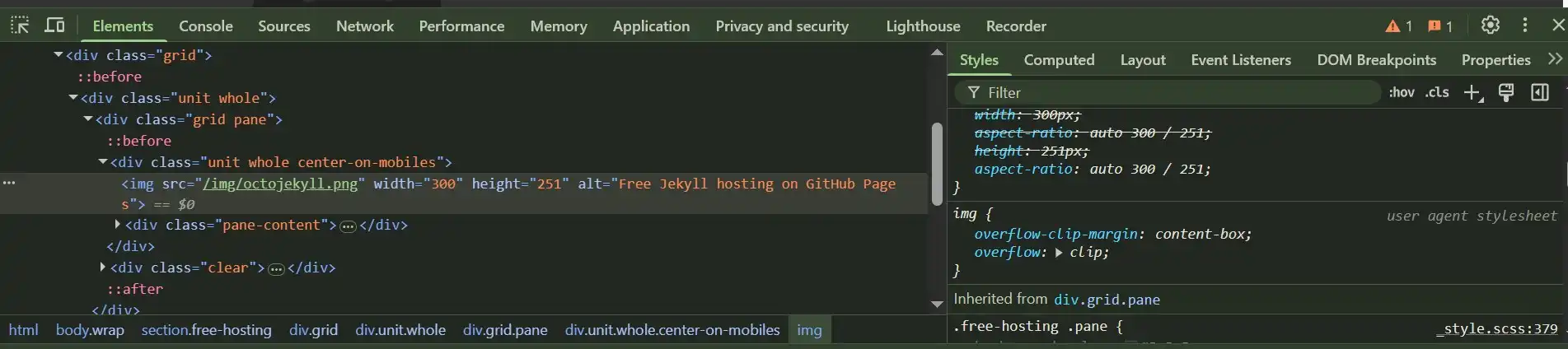
When looking at the code for the octokitty, I can tell it is a separate image. I imagine the developers were able to have to appear to extend beyond the box by using some type of layering using the “::before” and “::after” code or using the “overflow” attribute for the “img” element in the CSS code. At the moment, I’m not familiar with these so making an educated guess!
Screenshot of a phrase with an arrow icon.
Arrow UI Item

Arrow UI Item Current Page

UI Item - Summary

After learning in Website Coding that including the words “click here” in a URL is not a best practice, I’ve been struggling to just include the link with words. I appreciated this arrow icon as it provides further guidance that by clicking there will be more information. I could not tell if it was part of the paragraph element or an image (or something else), so I wanted to investigate further.

UI Item - Techniques

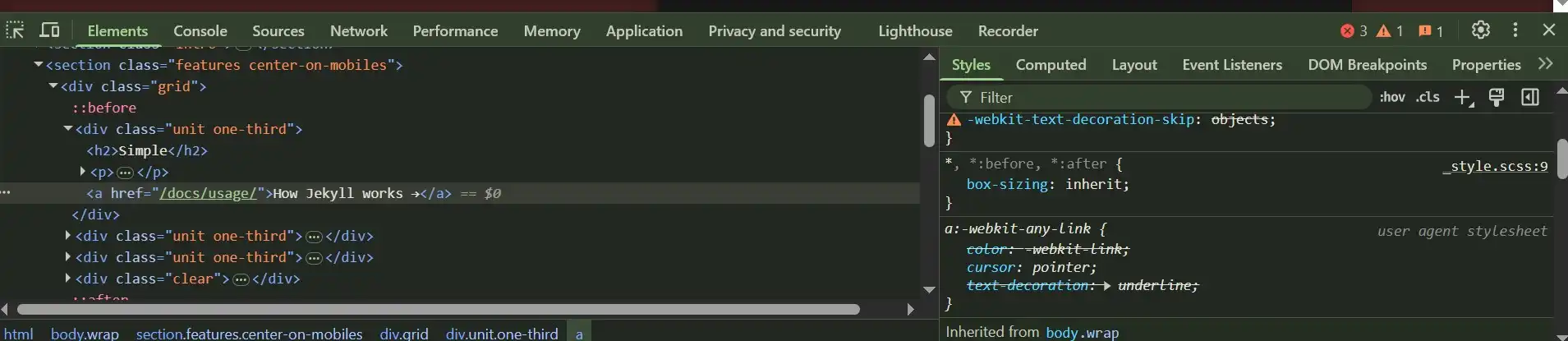
I discovered the arrow was, in fact, part of the paragraph element. I assumed it was a symbol, but the “→” was not included in the code. After some more investigation, it seemed to instead be created using a keyboard shortcut “alt-26”: →. It appears the way that it does most likely from the choice in font that the developers are using that is in the CSS code.

Picture of a black box with the phrase '/myblog' inside it in plain text.
Myblog UI Item

Myblog UI Item Current Page

UI Item - Summary

This UI item can be found in number three of the ordered list. I thought it was neat how the words “./myblog” were written in what appears to be a separate writing window. Although unable to be changed, it is still a great way to draw attention to part of the directions the developer is writing out. The fact that it is black and appears to be indented gives the UI element depth and character, which I find pleasing to the eye and, again, draws attention to that portion of the instruction. The plain text helps to emphasize that only that particular phrase is to be typed out.

UI Item - Techniques

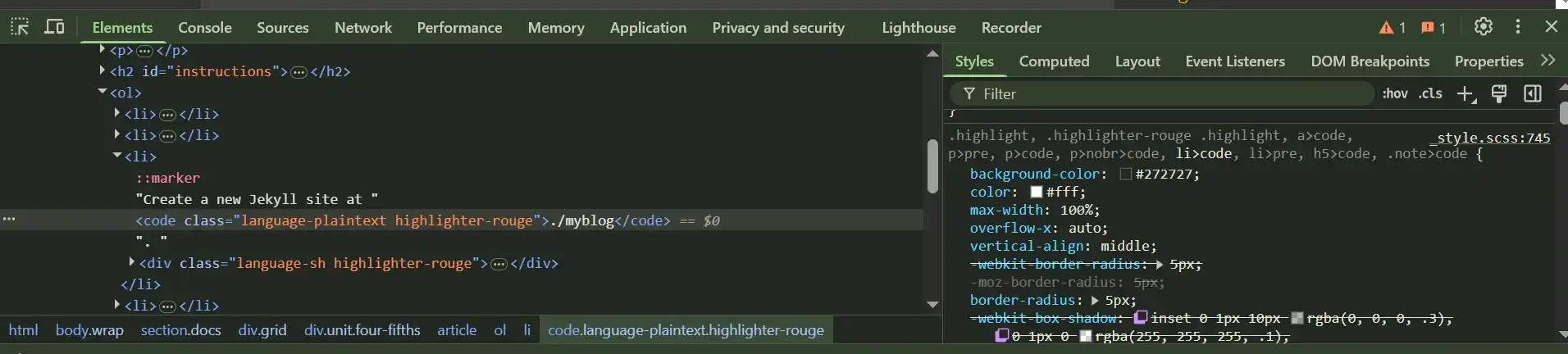
From what I can tell, it was created with a code tag. The CSS code does in fact have the appropriate background color (black), font color (white), box shadow, and more. I don’t understand the class name associated with "code" (language-plaintext highlighter-rouge), but this may also be impacting how it looks.

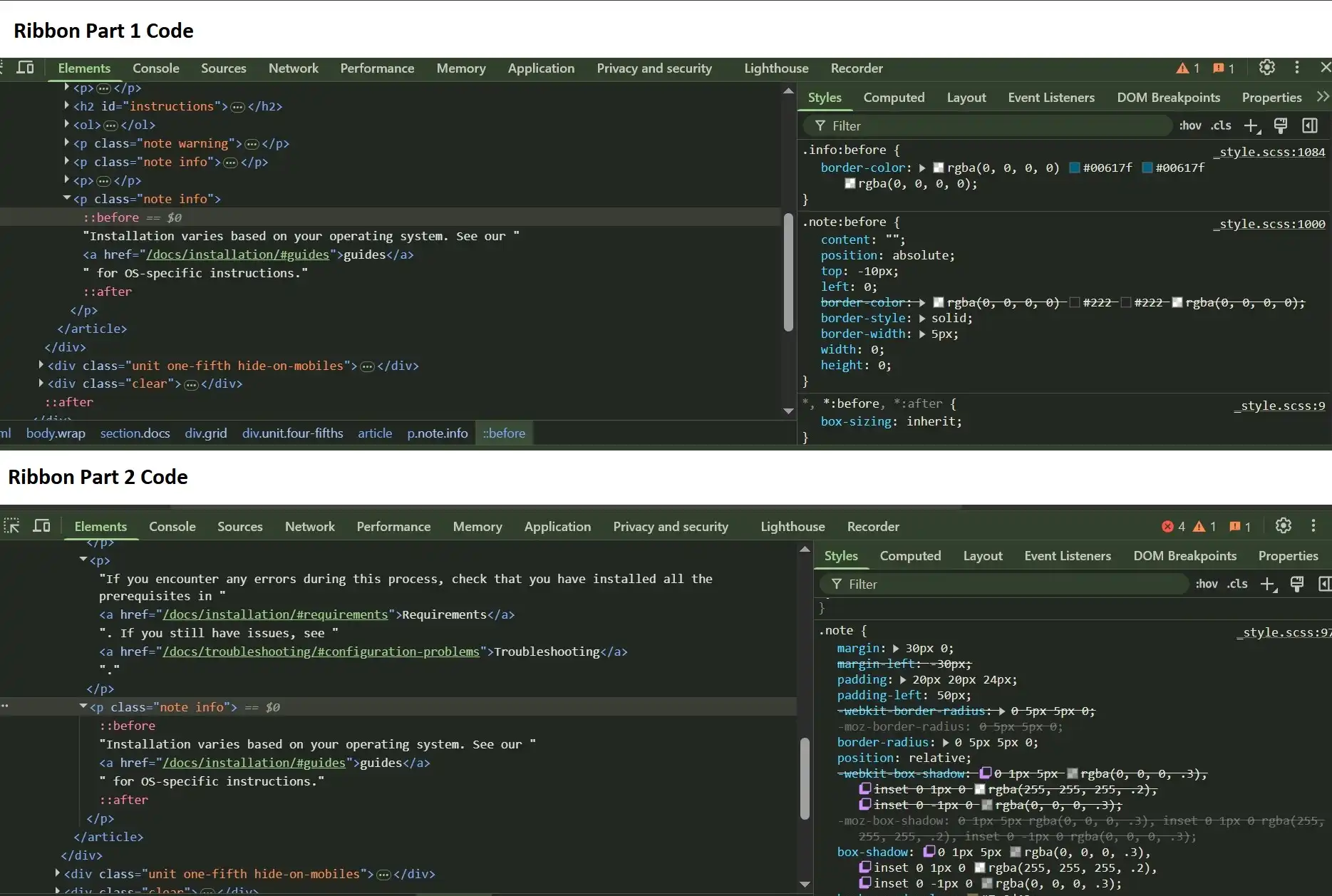
Picture of box that appears to wrap around the content of the webpage.
Ribbon UI Item

Ribbon UI Item Current Page

UI Item - Summary

Similar to octokitty, I thought that having the banner or “ribbon” and I call it wrap around the back provided additional character and depth to the webpage. The left-side of the image, alongside the box shadowing being used, provides a 3D effect to the UI element. The visual is also a powerful way to create organization on the page that helps visitors navigate through the page.

UI Item - Techniques

On further investigation, the part of the ribbon that appears to go behind the content is a separate triangle image. I thought that was brilliant! The location of the triangle image was positioned using the top property within the CSS code, as well as the code “::before”. I am not sure yet what this means, but like the octokitty UI element, I am assuming it has to do with positioning and/or layering. This is documented with the screenshot, “Ribbon Part 1 Code”. Ultimately, what looked like one element was multiple, and sure enough the rectangular portion of the element had the shadowing and gradient that assisted in making the entire UI element appear 3D. This is documented with the screenshot, “Ribbon Part 2 Code”.